
How to Convert PDF to PNG Online: The 2026 Guide to High-Resolution Image Extraction
In the visual-centric digital world of 2026, the boundaries between documents and design have blurred. Often, you may have a beautifully designed flyer, an intricate infographic, or a specific chart trapped inside a PDF that you need to use as a high-quality image. While JPG is a common format, professional creators and developers almost always prefer PNG (Portable Network Graphics). To capture every detail with pixel-perfect accuracy, you need to convert PDF to PNG.
PNG is favored for its lossless compression and support for transparency, making it the gold standard for web graphics and social media content. However, simply taking a screenshot of a PDF results in a loss of resolution and "blurry" text. SmartDoc utilizes a high-fidelity rendering engine that converts PDF vectors into crisp, high-resolution PNG images. In this guide, we will explore why PNG is the superior choice for document-to-image conversion and how to use SmartDoc to achieve professional results instantly.
Why PNG is Superior to JPG for PDF Conversion
When converting a document to an image, the format you choose determines the quality of the final product. Here is why PNG is the preferred choice in 2026:
- Lossless Compression: Unlike JPG, which "discards" data to reduce file size, PNG maintains every single pixel. This ensures that fine text and thin lines remain perfectly sharp.
- Transparency Support: If your PDF has a transparent background or specific cut-out elements, a PNG conversion can preserve that transparency, allowing you to layer the image over other backgrounds in design software.
- Text Legibility: PDF documents are text-heavy. JPG often creates "artifacts" or fuzziness around letters. PNG keeps text looking clean and professional, even when zoomed in.
- Web & App Compatibility: Modern websites and mobile applications in 2026 utilize PNG for its balance of quality and performance, especially for icons, logos, and UI elements derived from documents.

Caption: Converting PDFs to PNG allows designers to extract high-quality assets for digital projects.
How SmartDoc Handles High-Resolution Rendering
Converting a vector-based PDF into a raster-based PNG is a complex mathematical process. SmartDoc uses a 2026 rendering pipeline that mimics professional printing standards. Our tool doesn't just "take a picture" of the page; it redraws the entire document at a high DPI (Dots Per Inch).
This is particularly vital for users who need to convert technical drawings or medical diagrams. By choosing SmartDoc, you ensure that no data is lost during the transition from a document format to a graphic format. Our engine also supports "Batch Rendering," allowing you to convert a 50-page PDF into 50 individual PNG files in a single click.
Tutorial: How to Convert PDF to PNG with SmartDoc
Follow these steps to extract high-quality images from your PDF:
Step 1: Upload Your PDF
Navigate to SmartDoc and select the PDF to PNG tool. You can upload from your local device or sync directly with Google Drive or Dropbox. Our 2026 cloud servers handle encrypted uploads with lightning speed.
Step 2: Select Resolution Quality
Choose your desired output quality. For web use, 72 DPI or 150 DPI is standard. For professional printing or detailed design work, we recommend 300 DPI to ensure maximum clarity.
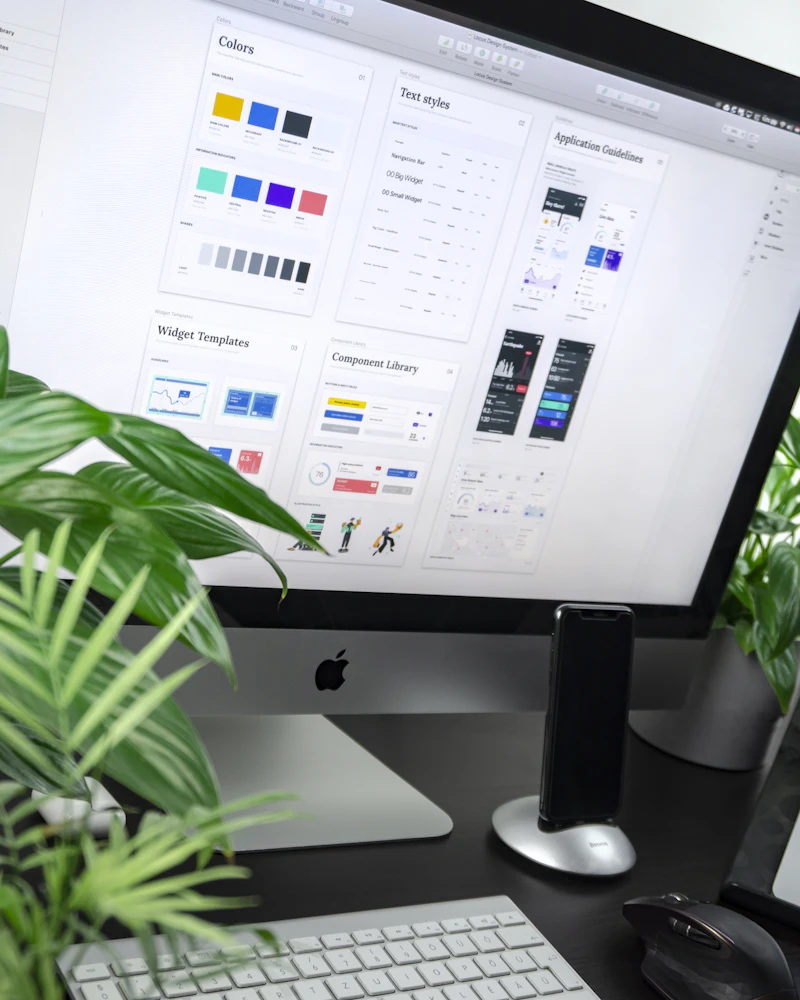
Caption: SmartDoc's engine renders PDF content into crisp PNG images suitable for professional presentations.
Step 3: Convert and Extract
Click "Convert to PNG." Our system will process each page of the document. If you have a multi-page PDF, SmartDoc will automatically package all the resulting images into a single, organized ZIP file for your convenience.
Step 4: Download and Use
Download the ZIP or individual images. Your PNGs are now ready to be uploaded to social media, embedded in a website, or edited in your favorite design app like Photoshop or Canva.
Pro Tips for Document-to-Image Workflows
To make the most of your PNG conversions in 2026, keep these design tips in mind:
- Isolate Specific Pages: If you only need an image of page 5 from a 100-page PDF, use SmartDoc's Split PDF tool first. This saves time and bandwidth during the PNG conversion.
- Mind the File Size: Because PNG is lossless, high-DPI conversions can result in large files. If the file is too big for your website, consider using a PNG optimizer or reducing the DPI to 150.
- Check for Overlays: Ensure there are no unwanted "sticky notes" or comments visible on your PDF before converting, as they will become a permanent part of the PNG image.
Privacy and Security: Your Assets are Secure
In 2026, data security is paramount. Your converted images often contain proprietary designs or sensitive data. SmartDoc uses 256-bit SSL encryption for every transfer. We follow a strict "Zero-Knowledge" policy—all files are processed in a secure memory buffer and are automatically hard-deleted from our servers within 60 minutes. We do not store your images, we do not track your content, and we never share your data with third parties. Your privacy is built into our code.

Caption: Automated security cycles ensure that your documents and images remain strictly confidential.
Frequently Asked Questions (FAQ)
Q: Can I convert a PDF to a transparent PNG?
A: If the original PDF has no background layer, SmartDoc’s engine can preserve that transparency in the resulting PNG.
Q: Is there a limit to how many images I can extract?
A: You can convert documents of any size. For extremely long PDFs, we provide the output as a ZIP file to make downloading faster and more organized.
Conclusion
Extracting high-quality visual assets from a PDF shouldn't be a hurdle in your creative process. By choosing the PNG format and a professional tool like SmartDoc, you ensure that your images remain sharp, versatile, and professional. Whether you're building a website or sharing on social media, SmartDoc provides the speed and quality you need in 2026.
Unlock your document's visuals. Visit SmartDoc now and convert your PDF to PNG for free!