
5 Best PDF to Excel Online Converters for Accurate Data Extraction
(2026)
Manually re-typing data from a PDF into a Microsoft Excel spreadsheet is one of the most tedious and time-consuming tasks in the modern office. Whether you are an accountant dealing with bank statements, a researcher analyzing data reports, or a student organizing references, accuracy is paramount. One misplaced decimal point can ruin an entire financial report.
In 2026, you don't need to spend hours on manual entry. High-precision tools like SmartDoc have revolutionized how we handle data. In this long-form guide, we will review the top 5 PDF to Excel converters that prioritize accuracy and data integrity.
The Challenge: Why Most PDF to Excel Converters Fail
Converting text is easy, but converting structures is hard. A PDF document doesn't actually "know" what a table is; it only knows where lines and text characters are positioned on a page. When a basic converter tries to turn this into an Excel sheet (XLSX), it often fails to recognize:
- Merged Cells: Cells that span across multiple columns often get split into messy fragments.
- Multi-line Rows: If a single row has wrapped text, many converters create two separate rows in Excel.
- Currency and Formatting: Special symbols like "$" or "%" can sometimes be converted into unreadable gibberish.
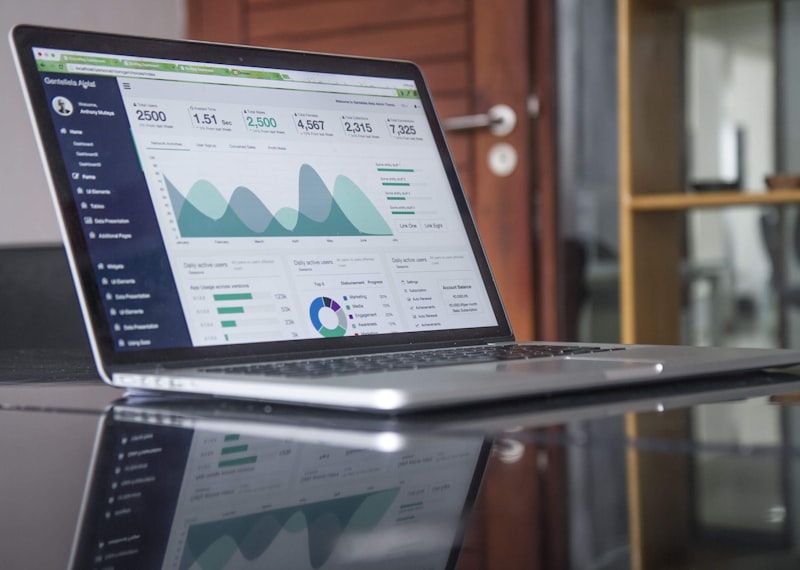
Caption: Precise data extraction is critical for financial and analytical reports.
Top 5 PDF to Excel Online Converters Rated by Accuracy
1. SmartDoc (Best for Speed and Precision)
SmartDoc stands out in 2026 due to its specialized "Table Recognition AI." Unlike generic converters, SmartDoc analyzes the white space and grid lines specifically to reconstruct the original spreadsheet structure. It’s free, fast, and requires no registration.
2. Adobe Acrobat Online
The industry standard. Adobe offers high reliability, but it often gates its best features behind a premium subscription. For quick, one-off free conversions, it’s a solid choice, though it can be slower to load than lightweight web-based alternatives.
3. SmallPDF
Known for its beautiful user interface, SmallPDF is great for simple tables. However, for very large PDF files with hundreds of pages, users might encounter "usage limits" unless they pay for the Pro version.
4. ILovePDF
A veteran in the PDF space. It offers a robust conversion engine. It is particularly good if you need to batch-convert multiple PDFs into separate Excel workbooks simultaneously.
5. Nitro PDF Web
Nitro is excellent for business-grade documents. It handles complex headers and footers well, ensuring that only the relevant table data makes it into your final Excel sheet.
How to Convert PDF to Excel Using SmartDoc: Step-by-Step
Follow these steps to ensure your data remains 100% accurate during the transition:
Step 1: Clean Your PDF
If possible, ensure the PDF is not a "flattened" image. If it is a scan, make sure the scan is straight. Crooked scans are the number one enemy of OCR (Optical Character Recognition) accuracy.
Step 2: Upload to SmartDoc
Navigate to SmartDoc and select the "PDF to Excel" tool. Drag your file into the cloud upload zone. The system uses end-to-end encryption to keep your sensitive financial data safe.
Step 3: Automated Mapping
Once you click "Convert," SmartDoc's algorithm maps the PDF coordinates to Excel cells. It identifies headers, numeric values, and text strings to ensure they are placed in the correct columns.
Step 4: Download and Verify
Download your .xlsx file. Open it in Microsoft Excel or Google Sheets. We always recommend a quick "spot check" on the totals and headers to ensure the AI captured everything perfectly.
Why Accuracy Matters for SEO and AdSense Quality
If you are a webmaster, providing a tool that actually works is the best way to keep users on your site. Google’s algorithms, especially in 2026, track "User Satisfaction." If a user converts a file and immediately leaves because the result is broken, your "Bounce Rate" increases. Using a high-quality backend like SmartDoc ensures users return, which boosts your AdSense earnings over time.
Advanced Features to Look For
When choosing a converter, look for these three advanced features:
- OCR (Optical Character Recognition): Essential for converting scanned receipts or physical documents into digital data.
- Batch Processing: The ability to upload 10+ files at once saves massive amounts of time.
- Privacy Protocols: Ensure the site has an SSL certificate and a clear data deletion policy.

Caption: An organized digital workflow starts with the right document conversion tools.
Frequently Asked Questions (FAQ)
Q: Can I convert a PDF back to Excel if it was originally a scan?
A: Yes, provided the converter has OCR technology. SmartDoc uses advanced OCR to "read" the numbers from images and place them into editable Excel cells.
Q: Will my formulas be preserved?
A: Unfortunately, no. PDF files only store the *results* of formulas (the numbers), not the math behind them. You will need to re-enter your=SUM()or=VLOOKUP()formulas in Excel.
Conclusion
In the battle of PDF to Excel Online converters, accuracy is the only metric that truly matters. While there are many options available, SmartDoc provides a unique balance of speed, security, and precision for free.
Stop wasting your weekends on manual data entry. Head over to SmartDoc and let the AI do the heavy lifting for you. Your spreadsheets will thank you!